📖 How to Use FileVoodoo
Complete visual guide to mastering all features of FileVoodoo v1.2
Getting Started
Installation
1
Download FileVoodoo from filevoodoo.net
2
Extract the ZIP file to your desired location
3
Run FileVoodoo.exe - no installation needed!
💡 Tip:
You can run FileVoodoo from any folder - it doesn't require installation or administrator access (though some features benefit from elevated privileges).
Tab 1: 📋 Duplicate Manager
Find and remove duplicate files to free up disk space and keep your system organized.
How to Use:
1
Click "Browse" to select a folder to scan
2
Choose detection mode (Scan Only or Move Duplicates)
3
Set output and duplicate destination folders
4
Click "Start" and wait for the scan to complete
Key Features:
- SHA256 hash-based detection for 100% accuracy
- Parallel processing for fast scanning
- Advanced options for fine-tuned control
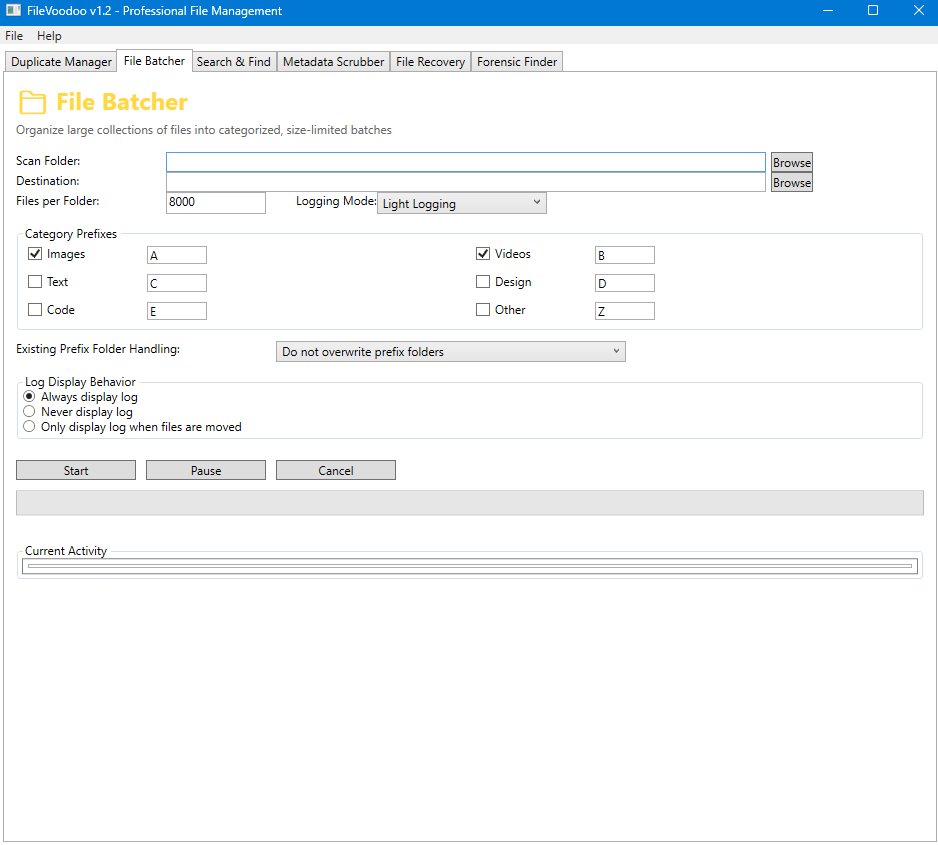
Tab 2: 📦 File Batcher
Organize files into categorized batches automatically.
How to Use:
1
Select the folder containing files to organize
2
Set destination folder for batches
3
Configure file types and category prefixes
4
Click "Start" and watch your files organize!
💡 Tip:
Check the "Images", "Videos", "Documents" categories that are pre-configured for common file types. Customize prefixes (A, B, C, etc.) for your needs.
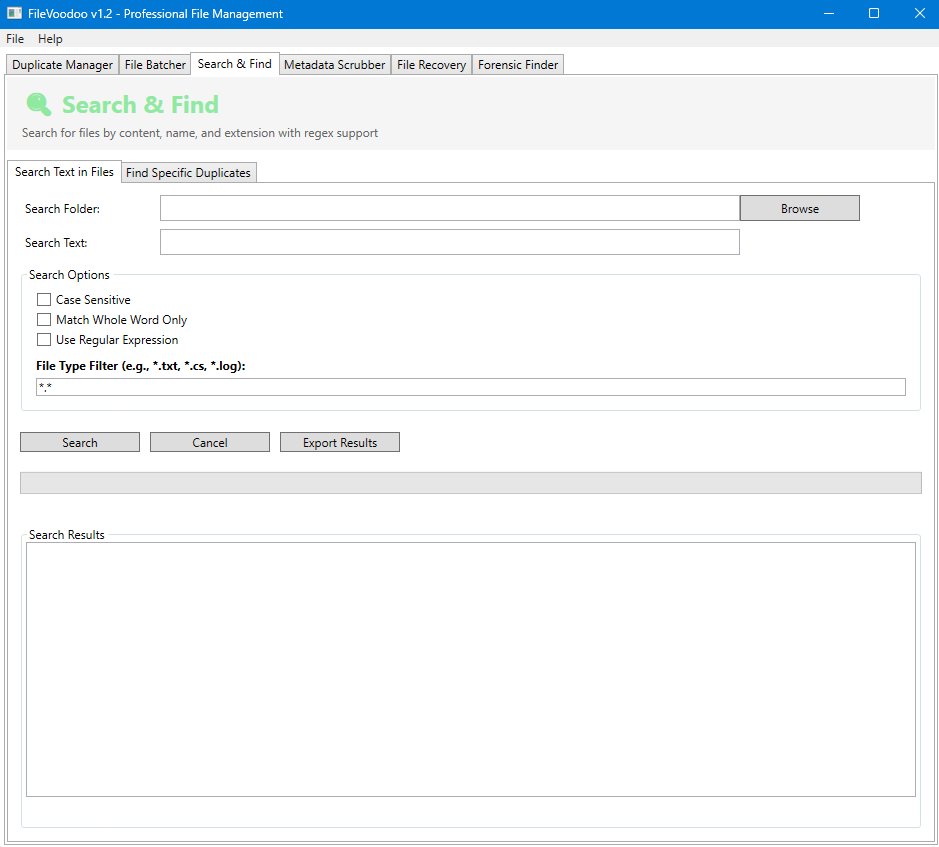
Tab 3: 🔍 Search & Find
Powerful file searching with regex support and content search.
How to Use:
1
Select search folder with "Browse"
2
Enter search text (e.g., "backup", "test", "report")
3
Configure search options (case sensitive, regex, etc.)
4
Click "Search" to find matching files
Search Options:
- Case Sensitive: Match exact case
- Match Whole Word Only: Find exact words
- Use Regular Expression: Advanced pattern matching
- File Type Filter: Limit search to specific extensions
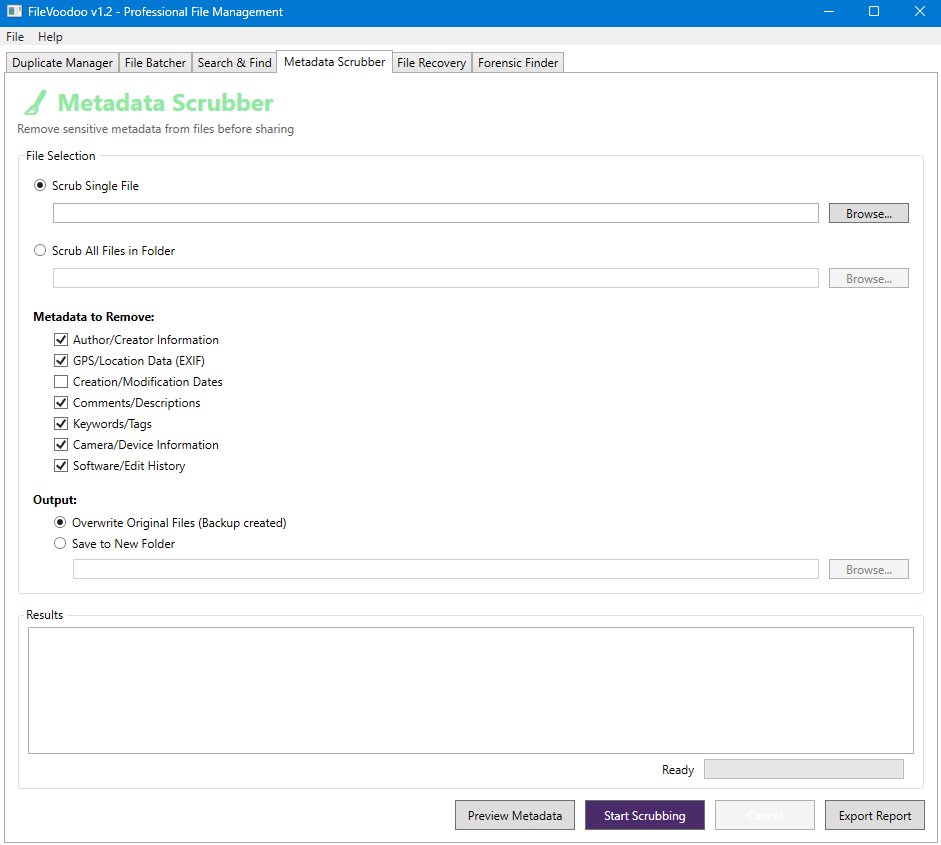
Tab 4: 🔐 Metadata Scrubber
Remove sensitive information from your files to protect your privacy.
How to Use:
1
Choose "Scrub Single File" or "Scrub All Files in Folder"
2
Select files/folder with "Browse"
3
Check metadata types to remove (Author, GPS, Comments, etc.)
4
Click "Start Scrubbing" - your metadata is now removed!
🔒 Privacy Tip:
Removes EXIF data from photos, document properties, GPS coordinates, and timestamps to protect your privacy before sharing files.
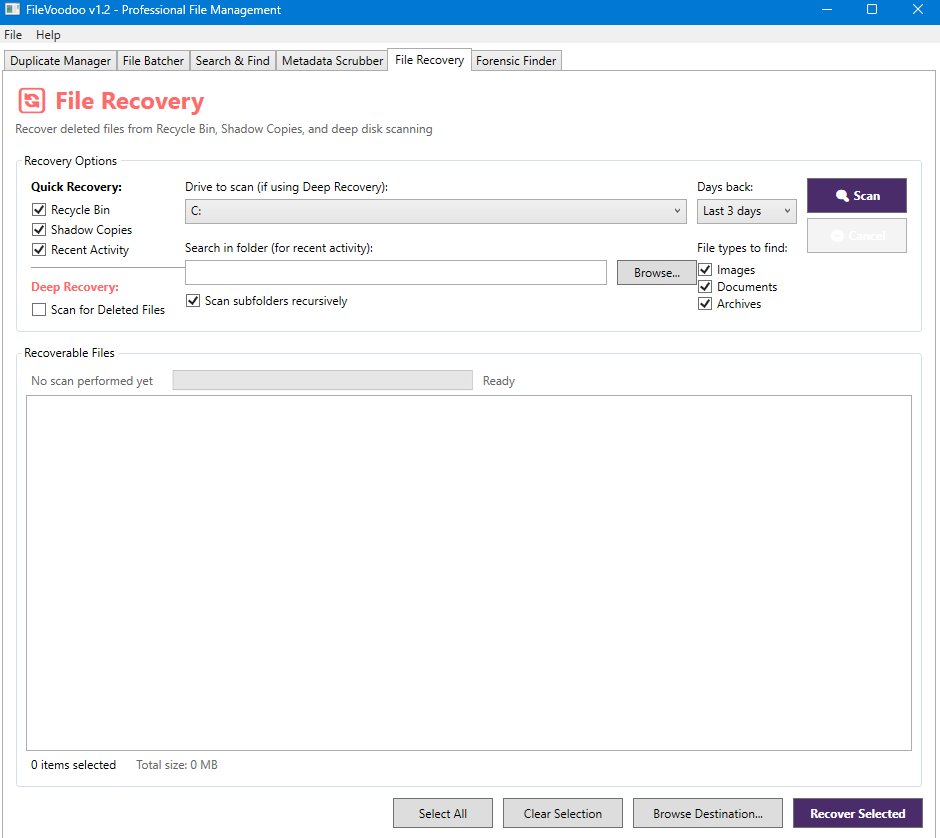
Tab 5: 🔄 File Recovery
Recover deleted files using quick recovery or deep disk scanning.
Quick Recovery (Fast):
1
Check "Recycle Bin", "Shadow Copies", or "Recent Activity"
2
Select drive and click "Scan"
3
Select files and click "Recover Selected"
Deep Recovery (Thorough):
1
Check "Scan for Deleted Files" for signature-based recovery
2
Select drive and file types to recover
3
Enable "Scan subfolders recursively" to search everywhere
4
Click "Scan" and wait for results
Recovery Success Rates:
- Just deleted (< 1 day): 80-95%
- Recycle Bin emptied (< 1 week): 60-80%
- Old deletion (1+ weeks): 40-60%
💡 Tip:
The sooner you recover a file after deletion, the higher your success rate. Stop using the disk immediately after accidental deletion!
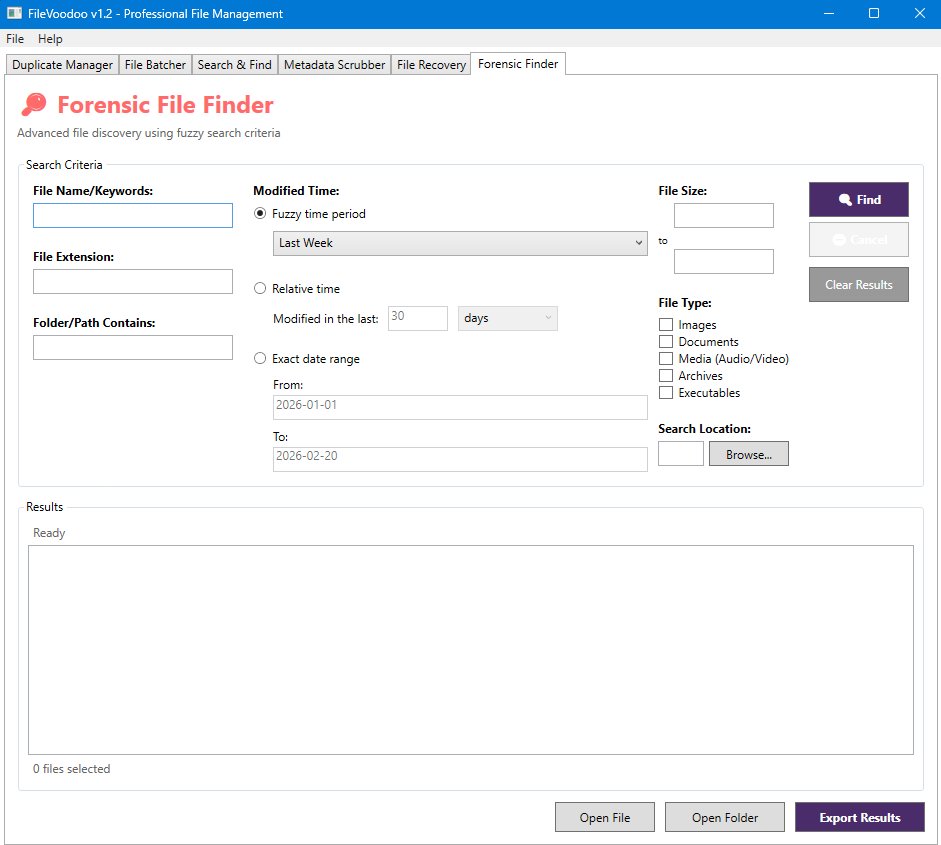
Tab 6: 🔎 Forensic Finder
Advanced file discovery using fuzzy search criteria and intelligent algorithms.
How to Use:
1
Enter file name/keywords to search
2
Choose time criteria (Last Week, Last Month, Custom, etc.)
3
Select file types (Images, Documents, Media, Archives, Executables)
4
Click "Find" to discover matching files
Time Period Options:
- Fuzzy periods: Last Week, Last Month, Last 3/6 Months, This Year
- Relative time: Custom hours, minutes, seconds ago
- Exact date range: Specify exact From/To dates
- Weekend files: Files modified on Sat/Sun only
💡 Tip:
Perfect for finding files you worked on recently but can't locate! Use time filters to narrow down your search.
⭐ Best Practices
Before Recovering Deleted Files:
- Stop using the affected drive immediately
- Run recovery as soon as possible after deletion
- Recover to a different drive if possible
- Don't install new programs on the drive
Before Removing Duplicates:
- Always preview the duplicates first
- Keep important files and delete lesser versions
- Back up your data before bulk deletion
- Test with a small sample first
Privacy Protection:
- Run Metadata Scrubber before sharing files
- Check both EXIF and document properties
- Save cleaned files with descriptive names
❓ Frequently Asked Questions
Q: Is FileVoodoo safe to use?
A: Yes! FileVoodoo is 100% safe, open source, and has no malware. It's released under GNU GPLv3.
Q: Can I recover permanently deleted files?
A: Yes, using the Deep Recovery signature-based scanning. Success depends on how long ago the file was deleted and disk usage since deletion.
Q: Does FileVoodoo require administrator rights?
A: Not for basic operations. However, some features (especially file recovery) perform better with elevated privileges.
Q: How long does a deep recovery scan take?
A: It depends on your drive size - typically 30 minutes to 16 hours for a full drive scan.
Q: Can I interrupt a scan?
A: Yes! All operations have a Cancel button. You can pause and resume scans.
 FileVoodoo BETA